
















How to Deposit with a Card on Mobile Devices
On CoinPoker, you can make bank card deposits easily with our mobile app or browser platform. Bank cards are just one of the many deposit options that are available to you.
Here, we’ll quickly guide you through the bank card deposit process on mobile devices.
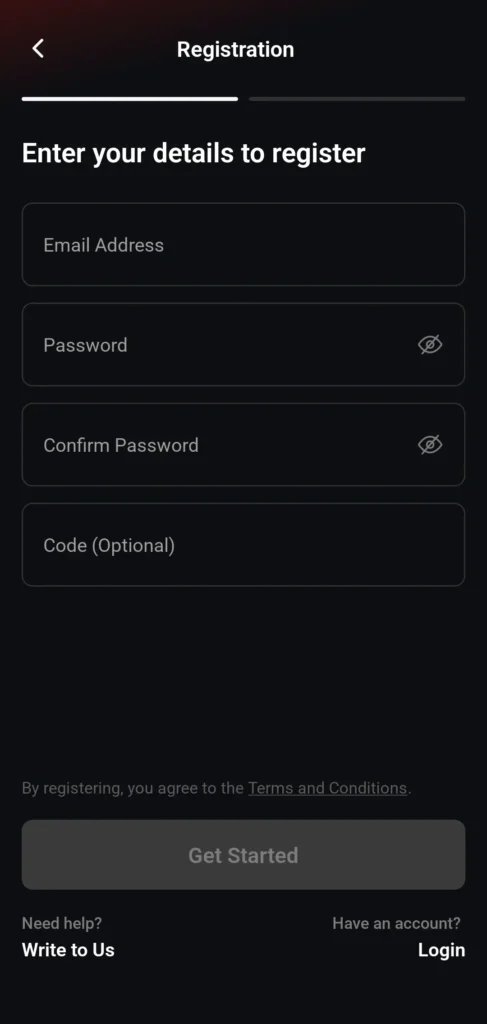
1. Sign Up or Log In to CoinPoker
If you haven’t registered yet, click the button below and create your account.
If you already have an account, enter your email and password to log in to CoinPoker.
2. Visit the Cashier
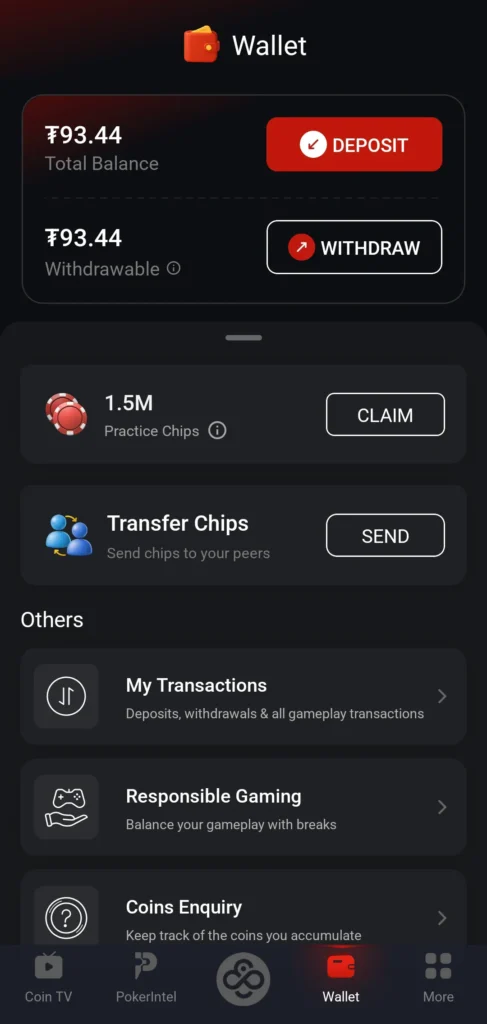
After you log in, you’ll see a main screen with several icons.
Click on Wallet on the bottom right in the lower menu, or click the wallet icon in the top right beside your balance. This will take you to the area where all deposits, withdrawals, and bonus tracking is done.

3. Select “Deposit”
When you first open the cashier, you will see a dashboard with several options:
- Deposit
- Withdraw
- Claim (for Practice Chips)
- Transfer Chips (P2P)
- My Transactions
- Responsible Gaming
- Coins Enquiry
Tap on the red Deposit button to continue.
4. Select “Bank Card”
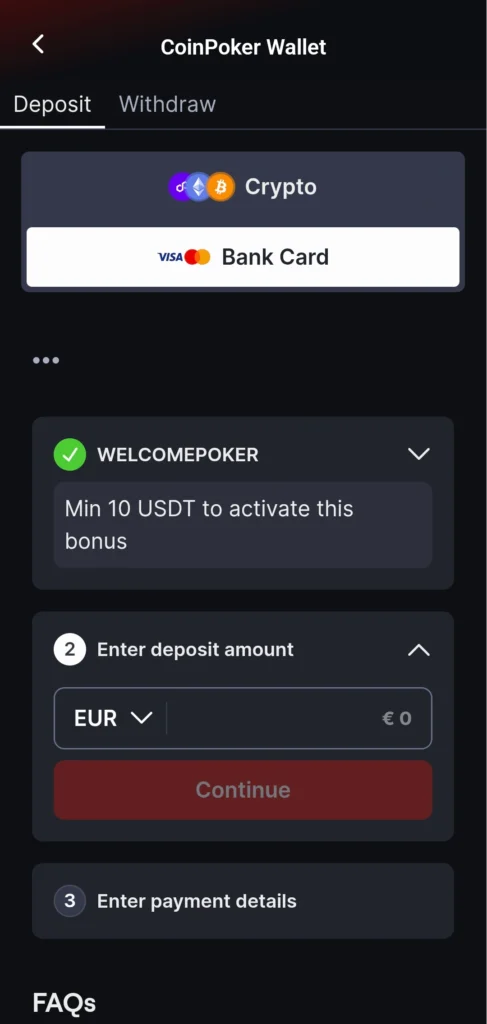
When you first open the cashier, it will automatically select crypto as your deposit method.
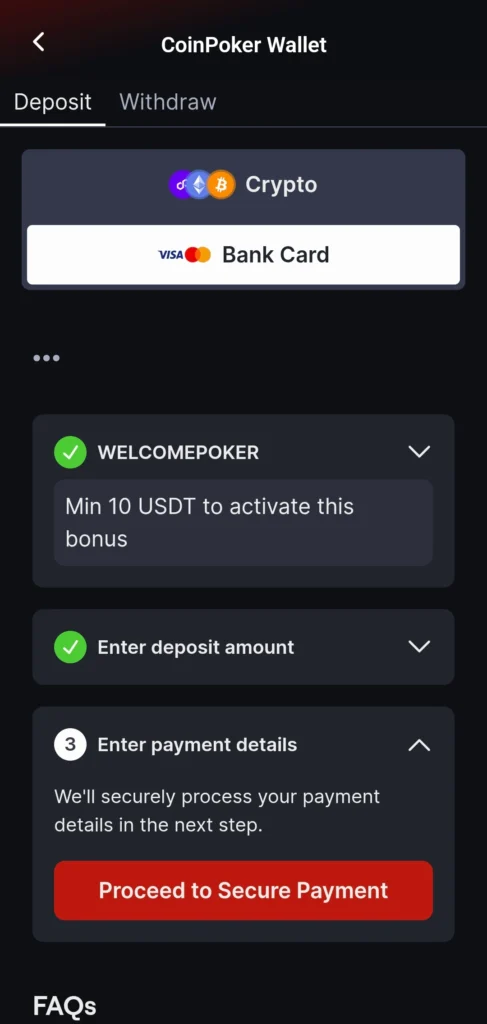
Tap on the Bank Card option below Crypto to select the bank card option.
5. Pick a Bonus & Deposit Amount
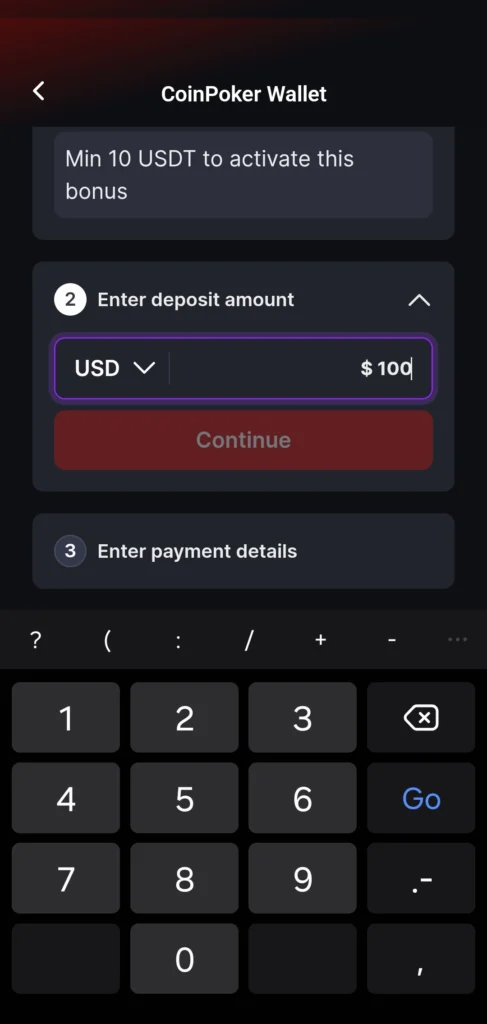
Under the first drop-down menu, select a bonus. If this is your first deposit, you can choose the 150% Welcome Bonus.
Under the second drop down menu, decide how much you want to deposit (in Euros or US Dollar currency).
6. Check Details & Proceed
Check that your bonus and the amount to deposit are correct, and click on Proceed to Secure Payment.
In the next steps, you’ll be able to enter your bank card details and finalize the deposit.
7. Enter Your Phone Number
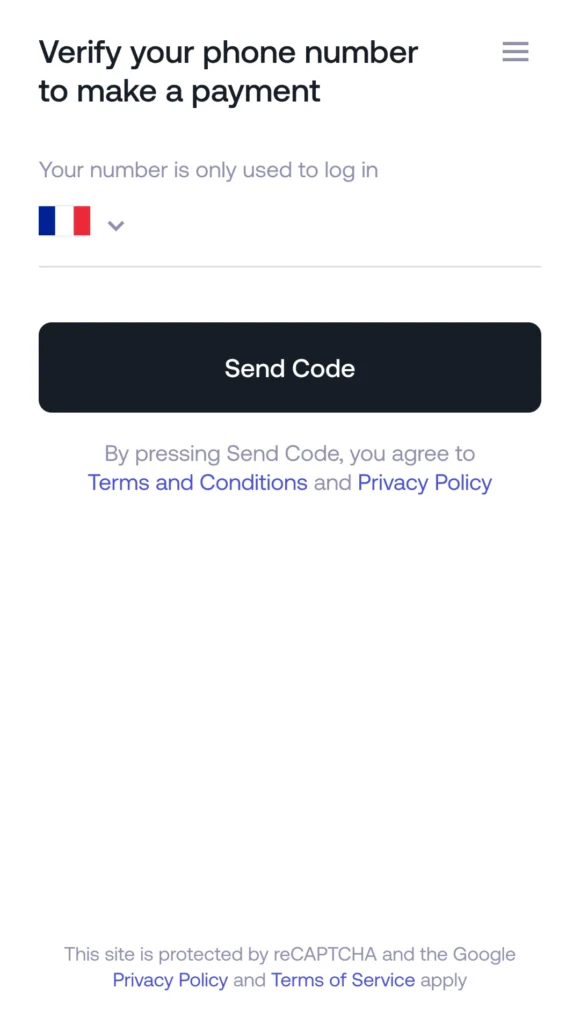
Select the country you reside in and enter your phone number. This will not be used for marketing purposes.
The phone number you enter will be used to confirm your account and maintain transaction security.
8. Confirm the Phone Number
Once you enter your phone number, the next step is to confirm it.
Usually, you’ll receive a phone call with a four-digit code, repeated twice, so you get a good chance to remember it.
Enter this code into the space provided.

9. Complete Additional Verification
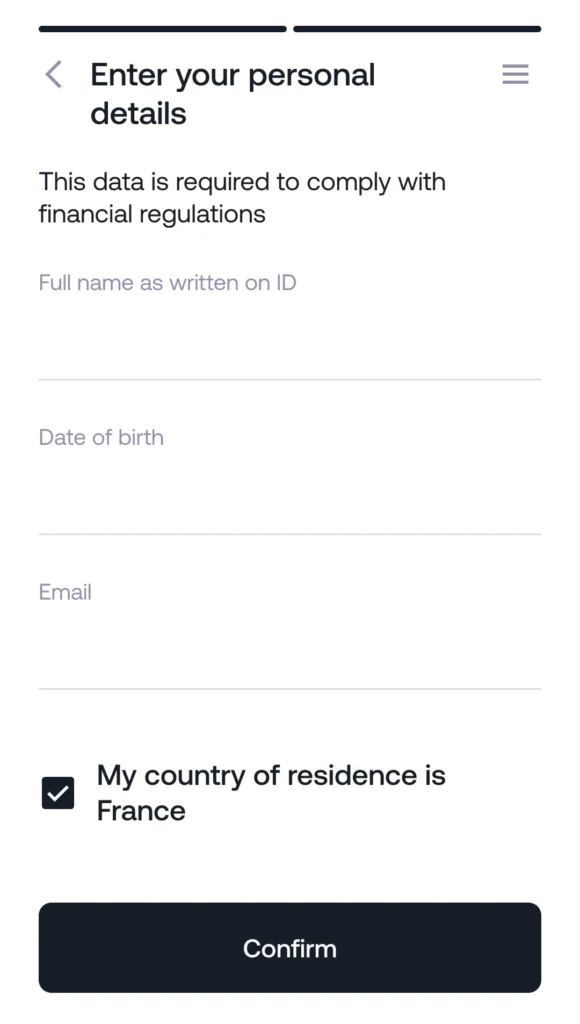
Verification (KYC) can change depending on which country you live in.
Certain countries require address and ID documents up front, while other countries only require an email, full name, and date of birth.
Follow the steps, and your identity will be verified so you’re ready for the next step.
10. Confirm Your Payment & Enter CVV/CVC
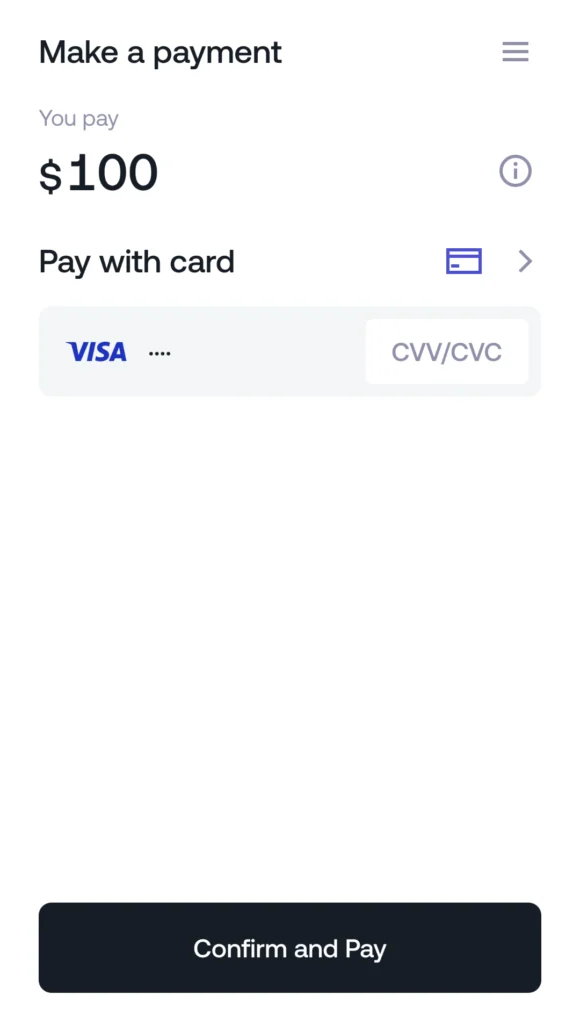
With all of your verifications complete, it’s time to finalize the transaction.
Check that the amount is correct, and then enter the three-digit code from the back of your bank card (CVV/CVC).
Next, click Confirm and Pay.
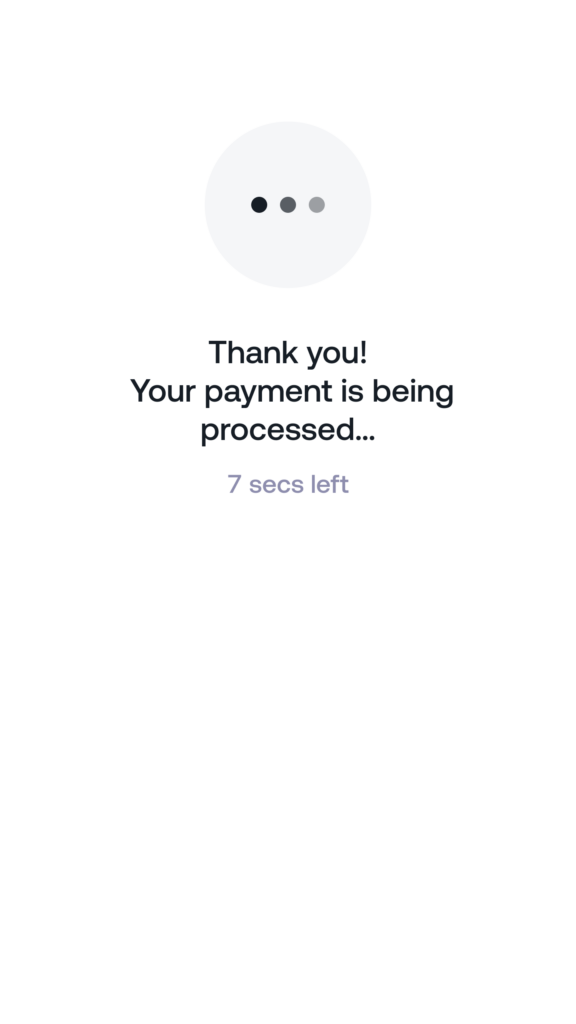
11. Wait for the Payment to Process
If successful, your payment will only take a few moments to process after you hit Confirm and Pay.
Wait a short time for the process to finish, and head to the final step.
12. View Your Completed Card Deposit
After the countdown finishes on the previous screen, you’ll see a confirmation that the order was completed.
This will show:
- The amount deposited
- An order number
- Date and time of the transaction
- Status (either Finished or Not Completed)

10. Play Poker, Casino Games, or Bet on Sports
With your bank card deposit complete, those funds are available for use on any of the games on CoinPoker. You can always check your balance in the Wallet section of the app, and make withdrawals or deposits freely.
If you need to make another bank card deposit, the system will ask you to confirm your phone number again for extra security.
If you need any more help, reach out to CoinPoker Support.
Good luck at the tables!